
SEACOR Marine employees in Louisiana, Houston, and New York now have access to Secured Printing, through our new Konica Minolta c300 printers.
Highlighted features:
- Pickup documents from any printer at any of the following sites: Houston, Morgan City, Houma (HTC and Warehouse), and New York City.
- Scan to Email, OneDrive, and SharePoint.
- Pickup documents from the printer using your badge, or PIN.
- Print to a single secured print queue for all printers.
Connecting is easy!
Step One: From your PC, at the bottom of the screen in the search bar, type \\10.10.150.9 and click enter.
You will be presented with a Username/Password prompt. Login with your SEACOR network account, using your email address.

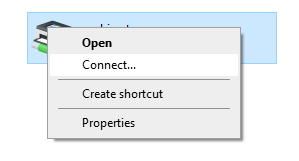
Step Two: In the Explorer window, right click the printer labeled "smhi-prt-secure". Then, click connect. This will install the printer for you.
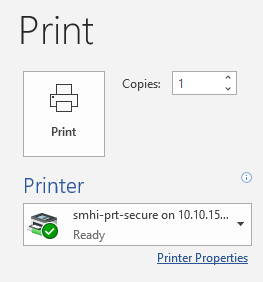
Step Three: Print something! In your application, for this example Microsoft Word, click file and print. Select the new printer from the list.
Step Four: To retrieve your documents from the printer, go to the printer and simply place your badge on the badge reader on the right side of the printer. Wait for the beep. If you don't your badge you can use your badge number, or the PIN you were given (users without a badge have been assigned an alternate PIN).
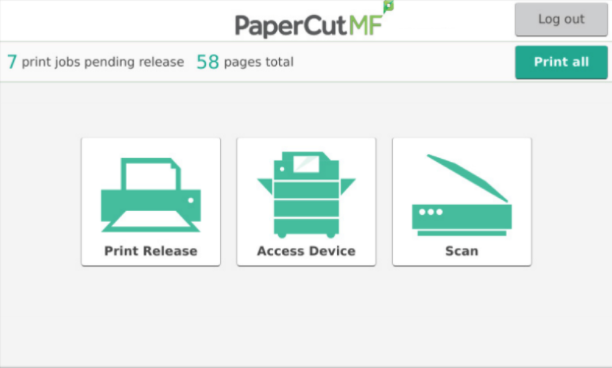
Step Five: Next, click "Print all" to print all the documents you've sent to the printer, or "Print Release" to print to select a document to print. Unprinted documents will be held for 24 hours.
SUPPORT REQUESTS
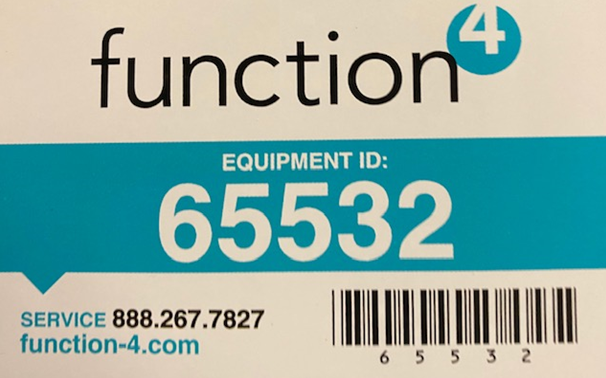
Note: Directly in front of the printer there will be an ID number. The ID is specific for your printer. Don't use the one you see here. Under it will be a service number. This is the number to call in cases of paper jams, and other perceived malfunctions. The ID looks much like this one:
If there is an issue with access to the printer, for example if maybe your badge doesn't work or you're unable to connect to the printer, contact the IT helpdesk at helpdesk@seacormarine.com, or by navigating to http://seacocormarine.zendesk.com from your browser to place a ticket.
Comments
0 comments
Please sign in to leave a comment.