
In a disaster recovery scenario, SEACOR Marine employees may be unable to reach the office or find the office itself is temporarily disabled or otherwise no longer viable. In these cases SEACOR IT has established methods for consuming resources remotely, in support of the Office 365 application suite (Outlook, Excel, Word, OneDrive), the 8x8 phone system, and Seanique.
Office 365 with a SEACOR Marine laptop:
From your SEACOR Marine laptop all applications and services relative to the Office 365 application suite will function seamlessly, as if you were located in the office, no matter your location.
Office 365 without a SEACOR Marine laptop:
In cases wherein you do not have your SEACOR Marine laptop, the Office 365 application suite can be found HERE (the office.com website). There, you can access Outlook, Word, Excel, OneNote, SharePoint, and OneDrive (among other apps).
To get to the applications:
Step One: In your browser, Navigate to the Office.com. Once there, click "Sign in" link in the top right corner of the page.

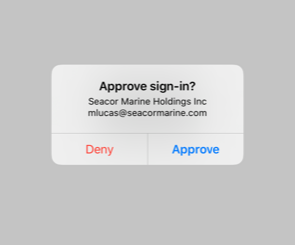
Step Two: If you've not had to authenticate from this browser before you will be required to complete the Multi-Factor Authentication process. See below, for an example using the MS Authenticator app.
a.
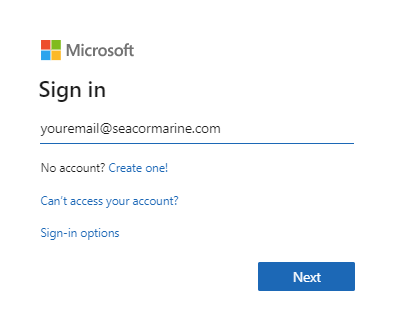
b.
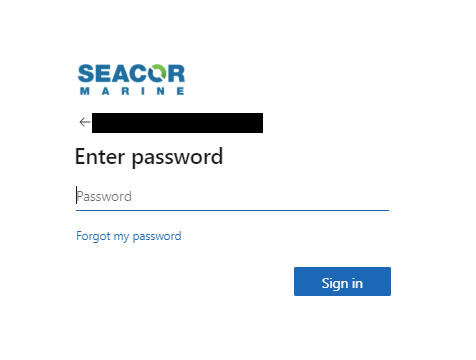
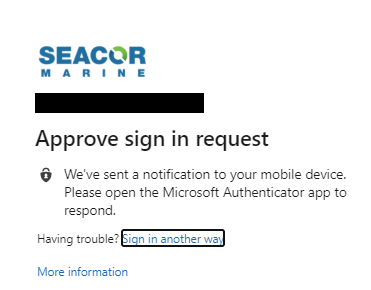
c.
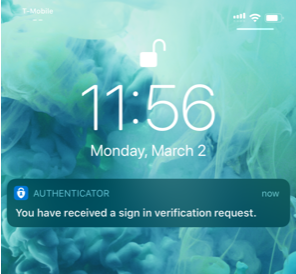
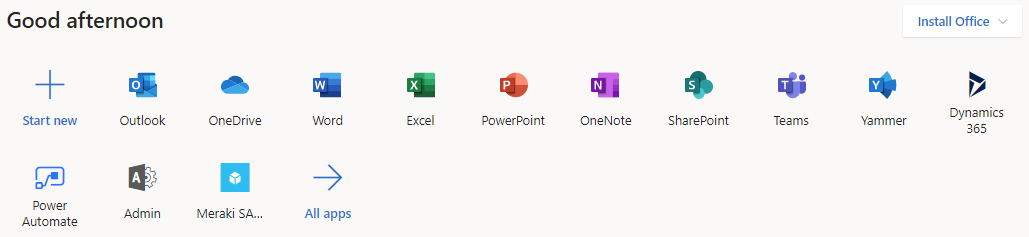
Step Three: Launch the appropriate app via the available selections below.
Step Three: At the Login screen, login (if you know your password), or select Forgot Password and enter your @seacormarine.com email address.
Please note: If you are not using Microsoft Internet Explorer, you will not be able to download or print documents from your browser. For example, Microsoft Edge, Chrome, Safari, and Firefox will not allow you to download attachments or print from the browser. You will see the following message in your browser while consuming SEACOR data:

Comments
0 comments
Please sign in to leave a comment.