
The SEACOR Marine standardized email signature must be used for all email communication to clearly convey a consistent brand across all employees and locations. There can be no deviation from the signature, added pieces, etc.
In order to deploy the official signature, there are dependencies that must first be met on your local workstation.
The instructions below will guide you through the necessary steps to ensure you've got all of the appropriate fonts and formatting necessary.
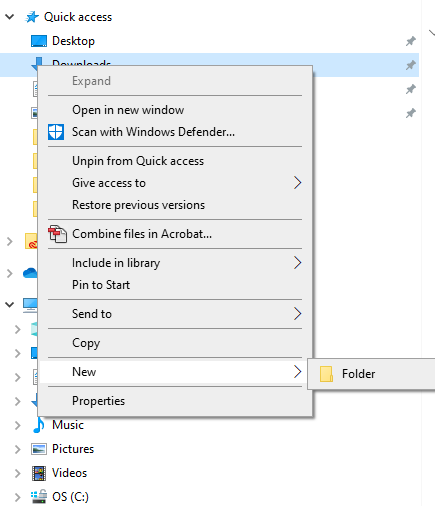
Step 1: In the Downloads folder, create a new folder titled "Fonts", or something else you'll easily remember.
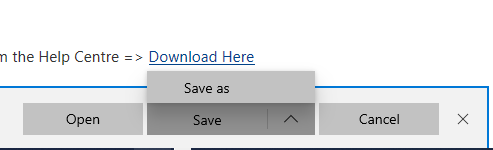
Step 2: Download the Roboto font class from the Help Centre => Download Here
Step 3: Click "Save as", and point to Downloads.
Step 4: Double Click the file, Roboto.zip. Highlight all of the fonts inside and copy+paste them to your new Fonts folder.
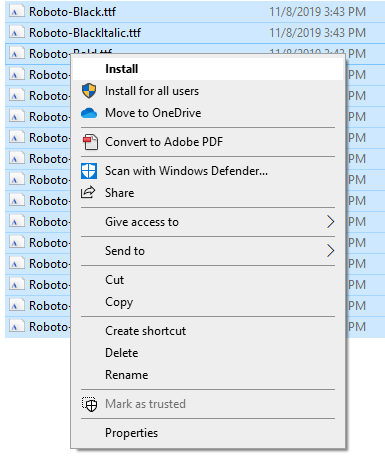
Step 5: Highlight all of the fonts in your Fonts folder.
he file, Roboto.zip. Highlight all of the fonts inside and copy them to your new Fonts folder. Right click inside of the highlighted area and click Install for all users.
Step 6: Download the signature template from the Help Centre => Download Signature Template Here
Step 7: Copy the 'Blank' signature template, including dashes (---).
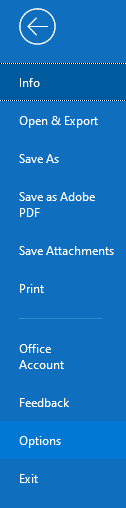
Step 8: In Outlook, Click on File => Options => Mail => Signatures.
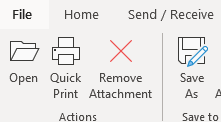
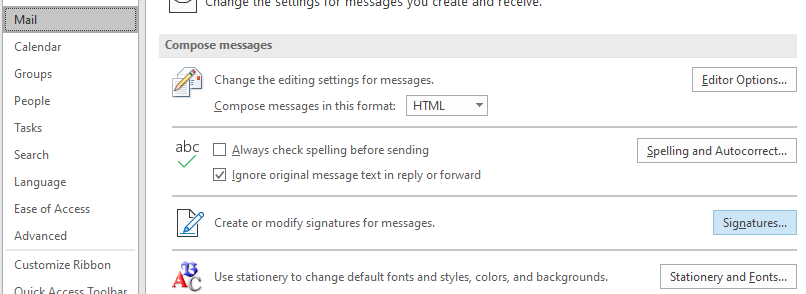
Step 8: Click "New", give it a name ("Default", "New", "SEACOR", etc.) and Paste the copied signature template into the text field.
Step 9: Make all necessary adjustments to your name, official job title, office address, phone number, and email. In the drop downs for New messages, and Replies/forwards, select your new signature.

Step 8: Click "OK".
Comments
0 comments
Please sign in to leave a comment.