
When you install MS Outlook app on your mobile phone, by default it configures a focused inbox. The focused inbox intelligently sorts your email with the most important email in "Focused" and less important email in "Other".
This can cause an issue if important email gets incorrectly classified into "Other" rather than "Focused"
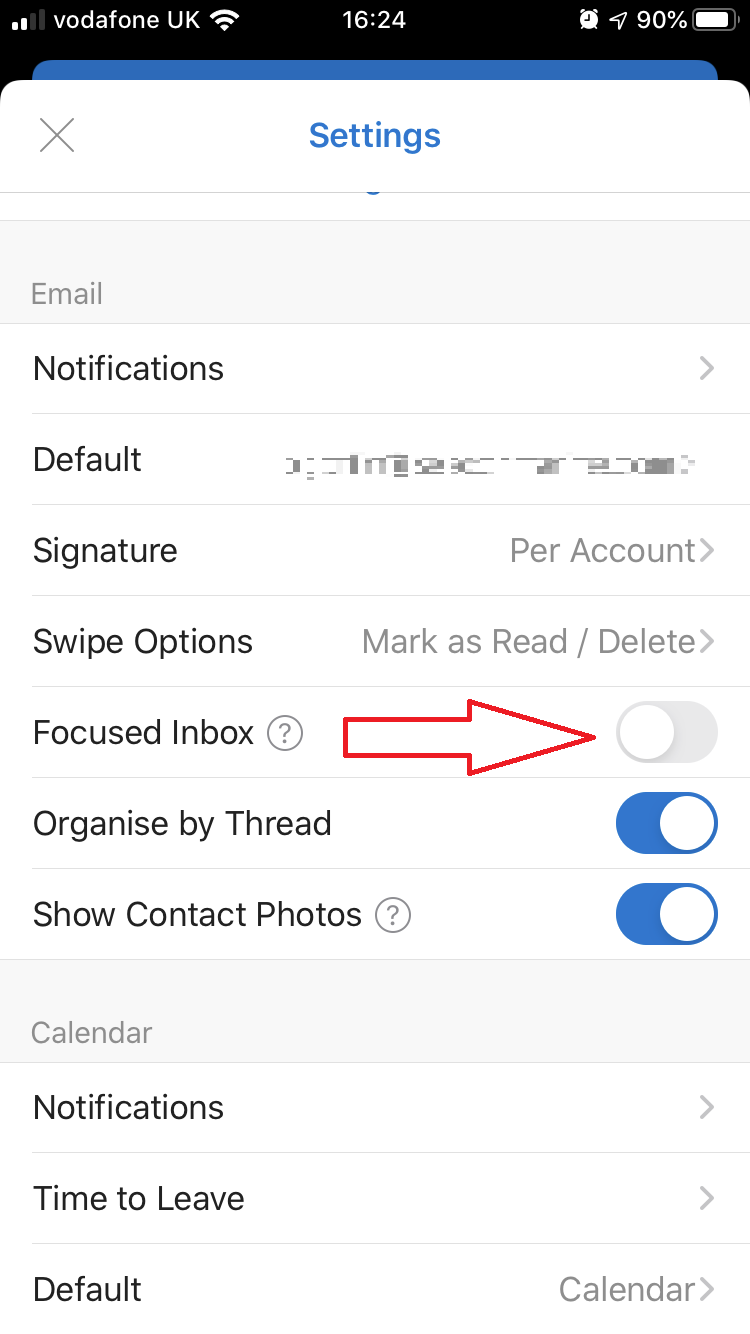
You can turn off the "Focused Inbox" setting so that all email is shown by default.
Default Setting with two locations; Focused & Other:
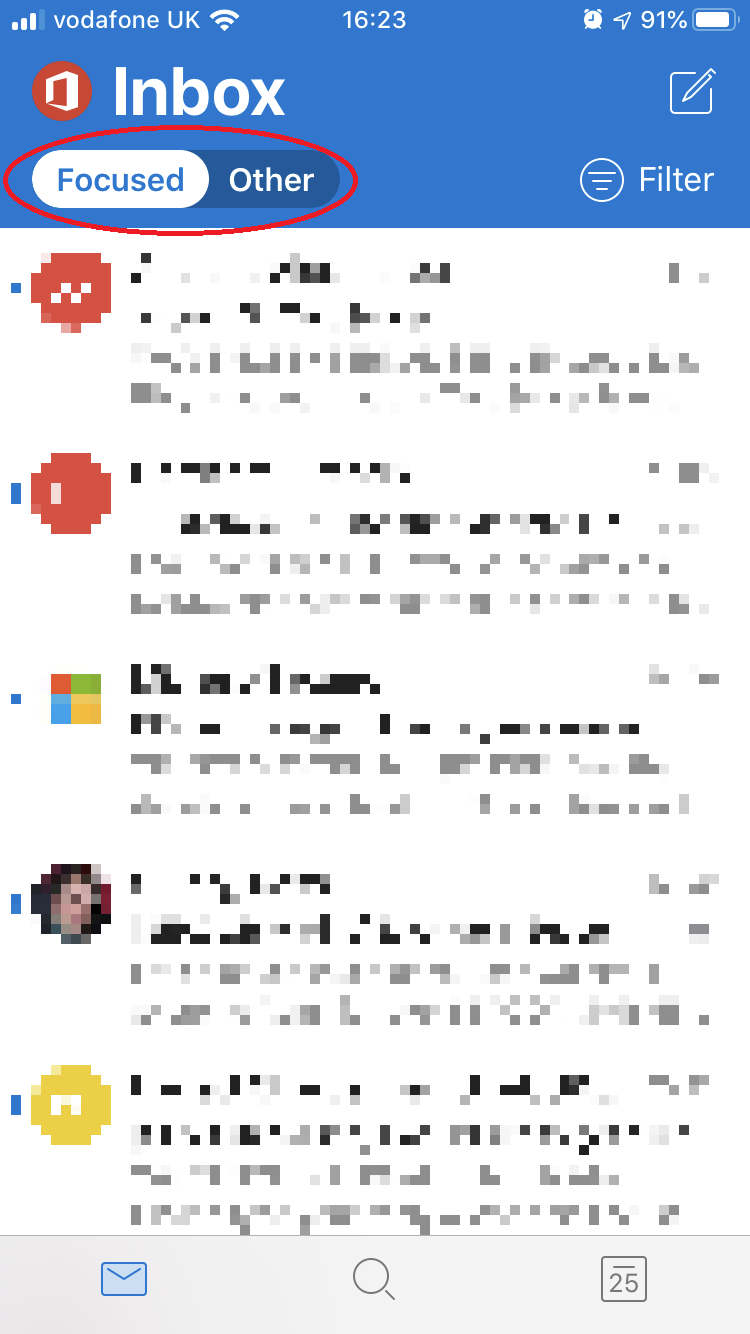
Step 1: Click on Inbox

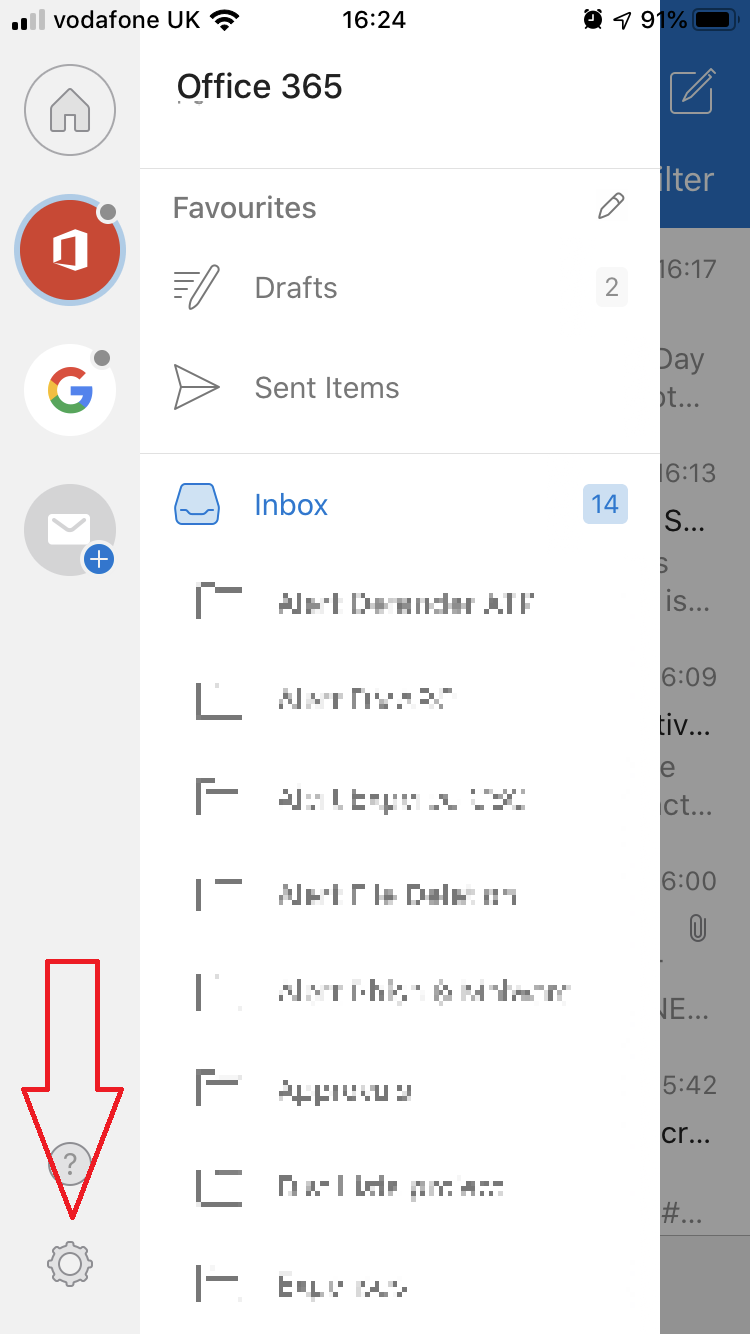
Step 2: Click setting icon at the bottom left of the screen
Step 3: Turn off "Focused Inbox"
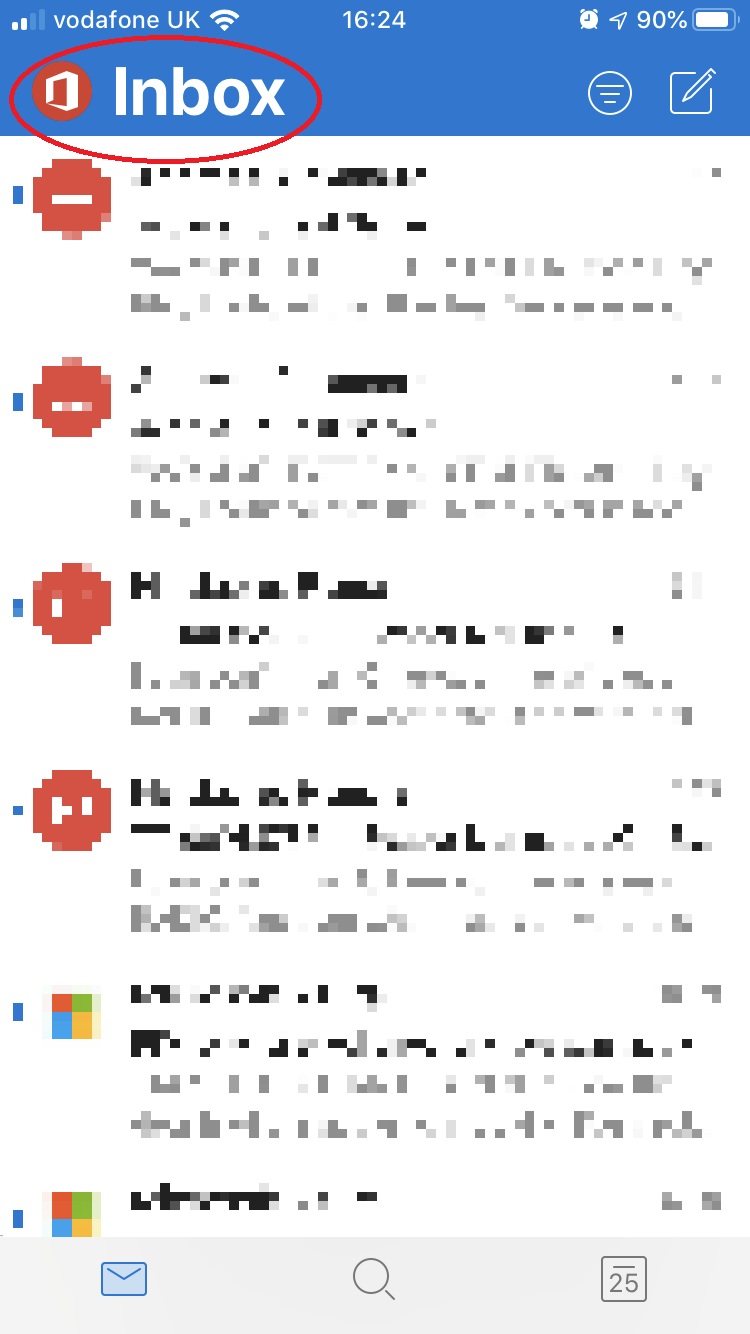
All emails are now shown in one location
Comments
0 comments
Please sign in to leave a comment.